 RavensPort
Where your configuration lives
Everything — OAuth client secrets, access and refresh tokens, API keys, per-endpoint proxy keys,
routes, upstreams, MCP sources and funnels, and settings — is stored in a vault called
RavensPort in your password manager. None of it is kept on this PC. There is no local
cache and no fallback file, so the proxy does not start until the vault is reachable — 1Password or
Proton Pass unlocked, or a 1Password service account token entered, which needs nothing local
unlocked at all. (RavensPort does write logs, and — if you sign in to Proton Pass from inside the
app, or ask it to remember a 1Password service account token — its own encrypted credential for
that sign-in. Neither contains any of the above. See Logs.)
Supported managers#
| Manager | Client | Install |
|---|---|---|
| 1Password | Native SDK (embedded), or op.exe when a service account token is used and the CLI is installed |
winget install AgileBits.1Password (desktop app required for that mode) — or a service account token, which needs nothing installed |
| Proton Pass not in the Store build |
pass-cli |
winget install Proton.PassCLI |
RavensPort installs neither of them, and does not link to anywhere that would. It looks for the CLI,
shows the command above if it is missing, and runs what you installed. The install commands are the
Windows ones; on Linux, see Linux build, which also covers
where a pass-cli or op has to be installed before RavensPort will run it.
Open RavensPort and it walks you through the rest: sign in and set up a vault. It only ever touches items it created, so the vault stays safe to keep other things in.
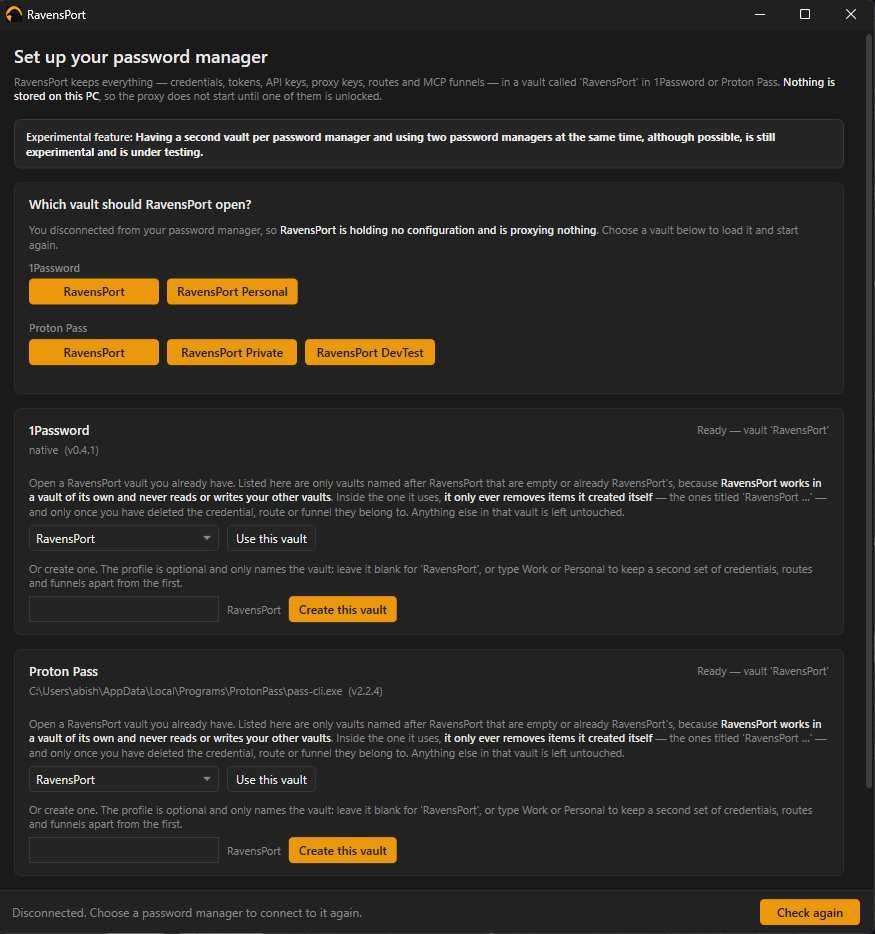
Signing in — 1Password. There are two ways in, picked on the setup card. Which one you want is a decision about the machine, so RavensPort asks rather than guessing.
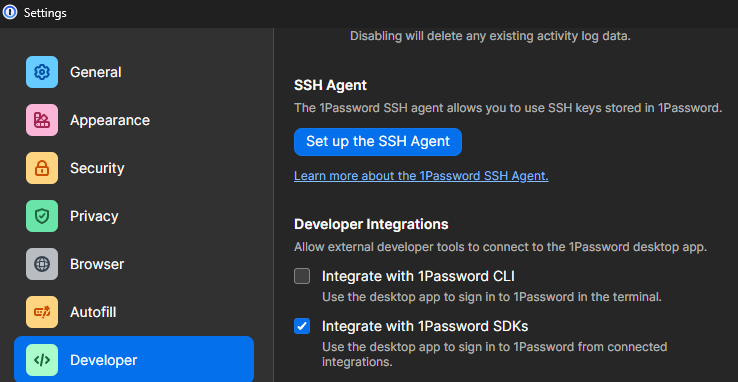
1. Desktop app integration. In the 1Password desktop app, navigate to Settings → Developer
and enable the 1Password SDK, then enter your
account name — the exact name at the top of the 1Password sidebar, such as Personal.
When RavensPort first tries to access your vault, 1Password will show a consent screen:
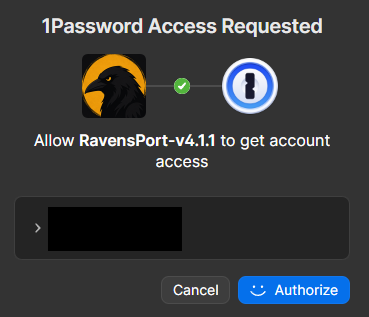
This mode needs 1Password running and unlocked, and it carries a known defect on 1Password's side (ipc-client#9): if 1Password starts while RavensPort is already running, it never opens its integration channel, silently, for the life of that 1Password process. Restarting 1Password alone does not fix it — quit both, start 1Password, then RavensPort. RavensPort now avoids causing this itself (see below), but it cannot repair a 1Password restarted mid-session, and says so plainly instead of leaving you to guess.
2. Service account token. new in 4.3.0 Create a
1Password service account, grant it access
to the RavensPort vault explicitly — a service account cannot see your Private vault, and
without the grant it sees no vaults at all — and paste its token on the setup card. Nothing local
has to be running, unlocked, or even installed, and none of the desktop-app defect above applies.
A service account token is a bearer credential. Whoever holds the string is the service account, from any machine, until you rotate it — scoping the vault limits what it opens, not who can use it. Never keep it in plain text, never enter it on a PC you do not own, never share it.
By default the token is written nowhere: it lives in memory for the run and is asked for again after a restart, so an install set to start at login serves nothing until someone enters it. Tick Keep this token on this PC, behind Windows Hello and it is stored in Windows Credential Manager encrypted with a key derived from a Hello signature — never in plain text, and only a gesture on this PC brings it back. That has its own consent screen, and its own credential separate from the Proton Pass session, so Forget saved token cannot sign you out of Proton Pass. The offer is not made where Windows Hello is unavailable — there is no plain-text fallback and there must not be one. That includes Linux: the desktop keyring is unlocked for the whole login session, which is not the same promise, so on Linux the token is never saved and is entered again after each restart.
Once a token is saved, the card offers Use the saved token and Forget saved token; service accounts rotate, and a revoked one would otherwise fail every startup with nothing in the UI to clear it. Disconnect always drops the in-memory token, but never the saved one — that is what Forget saved token is for.
Where the real op.exe is installed and its signature verifies (on Linux, an op in a system
location that only an administrator can write to), the token is passed through it
instead of the in-process SDK, so the credential lives in a child process that exits rather than in
a library mapped into RavensPort for the rest of the run. No CLI, or one that cannot be verified,
simply uses the SDK — the token needs no CLI at all.
If both are installed and neither vault clearly holds the configuration, RavensPort asks which to use — every launch. The choice is the one thing that cannot live in the vault, and this app deliberately stores nothing about itself locally. Once one vault has a configuration in it, that one is used and the question stops.
Settings → Password manager shows which manager and which vault are in use, where its CLI is and what version answered, and whether everything on screen has reached the vault:
| Button | Does |
|---|---|
| Sync now | Pushes pending changes. With nothing pending it re-reads the vault instead, which is what catches an item you deleted in the password manager |
| Rewrite all items to vault | Writes every item and the config item again from memory — the way back from a vault edited by hand. It replaces every item, so prefer the integrity check when only one is missing |
| Re-initialise from vault | Throws away everything in memory and loads it again. Asks first: every route and funnel is rebuilt, so requests in flight fail, and anything unsaved is lost |
| Disconnect | Stops using the manager and empties the configuration. Asks first, for the same reason |
| Vault integrity | Compares vault against configuration — see below |
Nothing in the vault is deleted by disconnecting, so connecting the same vault brings it all back. Connecting a different one gives you a separate set of credentials, routes and funnels: one install, as many profiles as you have vaults, one at a time. After disconnecting, the setup page lists the account's vaults to pick from — RavensPort deliberately stops rediscovering the one you just left, or it would reattach to it before you could choose.
If two vaults both hold a configuration, RavensPort will not guess: opening one would overwrite the other on its next save. The setup page names them and asks. To switch profiles at any time, pick another vault — or create one — on the setup page; both are offered even when a vault is already connected.
Vault integrity accounts for every live item in the vault and changes nothing until you pick:
- Items nothing refers to — left by a delete that failed or a save that died part way, a second item claiming a record that already has one, or an item titled as RavensPort's in a shape it can no longer match (a record id edited away — no save will ever touch that item again). Delete one at a time or all at once.
- Records whose item is missing — each says what it costs (a credential's secret is then only in memory, and dies with the process). Write missing items to vault puts them back from memory and touches nothing else; removing the record from the configuration is the other, destructive option. Write them while RavensPort is still running — the secret exists nowhere else.
- Everything else in this vault — your own items, listed but never read, written, or deleted by RavensPort. They are shown so the check covers the whole vault rather than only what this app can recognise, and because a renamed RavensPort item shows up nowhere else. Delete is one at a time, never part of a bulk action.
Saving deliberately sees less than checking does: it only looks at items titled as RavensPort's, which is what keeps your own entries out of reach of its housekeeping.
Items your password manager considers deleted are ignored everywhere — Proton Pass keeps returning trashed items from
item list, and 1Password returns archived ones. Reading those made an emptied vault look full and a deleted credential look present.
What the vault looks like#
| Item | Holds |
|---|---|
RavensPort Config |
Routes, upstreams, MCP sources, funnels, API bridges, settings — the topology, with no secrets in it |
RavensPort credential — <name> [<id>] |
One per credential: client id and secret, API key, service account key file, access and refresh tokens |
RavensPort route key — <prefix> [<id>] |
One per route: its proxy key |
RavensPort funnel key — /mcp/<slug> [<id>] |
One per funnel: its proxy key |
RavensPort api bridge key — /api-mcp/<slug> [<id>] |
One per API bridge: its proxy key |
RavensPort api bridge manifest — /api-mcp/<slug> [<id>] |
One per API bridge: its tool definitions |
A bridge's manifest is the one item here holding no secret, and it is still kept out of the config
item. It is the largest thing most people write into RavensPort, and the config item is rewritten in
full on every save — including every token refresh — so a manifest living there would be
re-encrypted and re-synced each time a token aged out. Its own item is also simply where you would
look for it: open RavensPort api bridge manifest — /api-mcp/tracker to read exactly what an agent
is being offered.
The rest get their own items so your password manager can conceal them, show them, and let you copy one out without reading JSON. Each field lives on exactly one side — a credential's scopes are in the config item and nowhere else, its secret is in its own item and nowhere else — so there is never a question of which copy is right.
You can edit these in your password manager. RavensPort picks up changes on its next load and overwrites them on its next save, so use Reload from vault after editing by hand.
If you delete a credential's item there, RavensPort takes that as the credential being gone: on the next load it removes it from the configuration, tells you in a banner (naming any routes that now forward unauthenticated), and writes the corrected config item back. Without that it kept a credential the vault no longer had, and every launch raised the same ghost. A credential that never had an item — a public OAuth client with no secret — is left alone; the removal only happens when the config item points at an item that has been deleted. Deleting a bridge's manifest item works the same way and takes the bridge with it, along with any funnel source that exposed it: a bridge with no tools left to serve is not a bridge. Sync now on the Settings tab does the same check on demand when there is nothing waiting to be saved.
While the vault is locked#
Everything keeps working. Edits, OAuth token refreshes, and proxy-key rotation all go ahead against the in-memory configuration, and RavensPort writes them to the vault as soon as your password manager is reachable again. A locked manager never takes a route down and never blocks the UI.
A banner appears while anything is unsaved, with an I've unlocked it — save now button. The sync also retries on its own, so unlocking is usually enough.
If you decline an authorization prompt, that is taken as an answer: retrying is what raises the prompt again, so RavensPort stops asking until you press I've unlocked it — save now. Nothing is lost by declining — the pending changes stay in memory and go up on the next save. And a 1Password that locks, or a prompt dismissed, no longer costs you the connection: the SDK invalidates its client id in both cases, so RavensPort rebuilds the connection and replays the call once, rather than failing every later call for the life of the process.
The catch, stated plainly. Nothing is written to disk while it waits — a pending change lives in memory and nowhere else, because a spill file would be a copy of your secrets sitting outside your password manager, which is the thing this app exists to avoid. So:
If RavensPort exits while changes are still unsaved, those changes are gone. Any credential whose token was refreshed in that window has to be reconnected, because the refresh token in the vault is the one the provider has already replaced.
Choosing Exit from the tray while anything is pending makes one last attempt to save and then warns you before quitting, so this should never happen by accident. A machine shutdown or a crash gives no such warning.
This is a deliberate trade. The alternative — refusing to save or refresh until the vault is reachable — breaks every OAuth route the moment its access token ages out, which happens far more often than exiting mid-lock. Only the newest token is ever useful, so there is nothing worth keeping that a reconnect cannot restore.
Keeping it available. The option that weakens nothing is a token — a 1Password service account
token entered on the setup card, or a Proton Pass personal access token in
PROTON_PASS_PERSONAL_ACCESS_TOKEN (read-only), scoped to the vault in use — so nothing has to stay
unlocked at all. Running unattended on the Settings tab explains both, deliberately away from the
lock banner: that banner interrupts you mid-task and should offer the thirty-second fix, not a
walkthrough of creating a long-lived credential. Failing that, you can raise the auto-lock timeout in your
manager's security settings, but that is a real trade: the timeout exists to limit how long an
unattended machine holds your secrets decrypted. RavensPort never changes those settings for you.
Trying it without a password manager#
The setup page also offers Start in single use: RavensPort runs on memory alone, with every tab, route, funnel and credential working and no password manager involved or unlocked. Nothing is saved. The configuration exists only inside that process, so disconnecting on the Settings tab or closing RavensPort discards it. Real credentials and tokens work, but any OAuth grant you connect has to be connected again next time. It is for trying the app out, not for running it.
Using one vault from two machines#
RavensPort assumes it is the only thing writing to RavensPort. Both managers sync, so two
installs pointed at one vault will overwrite each other's changes — last writer wins, with no
warning. Each save stamps the machine name and a revision into the config item, so you can at least
tell after the fact. Run it on one machine at a time.
Edit this page on the wiki Request support · Report vulnerabilities privately