 RavensPort
Setting up a credential
Pick a Credential type first — it decides the rest of the form.
| Type | For | Needs |
|---|---|---|
| OAuth2 (user login) | Google, GitHub, Nextcloud, any OAuth2 provider | client ID/secret, scopes, a browser consent flow |
| OAuth2 device code | the same providers, without registering a redirect URI | client ID, device + token endpoints, scopes, a code you type |
| API key | services that never offered OAuth | the key, and where it goes |
| OAuth2 client credentials | machine-to-machine APIs — the app is the user | client ID/secret, token endpoint, scopes |
| Google service account | Google Cloud and Workspace APIs, unattended | the downloaded JSON key file, scopes |
| Token exchange | APIs with their own login call instead of OAuth2 | an exchange endpoint, an API key or JSON body to trade, where the token is in the response |
Every kind attaches to routes identically, and all of them share two fields:
- Default placement — where the secret goes by default. Used by the Test button, and it
prefills the entry when you attach this credential to a route (a route can still override it).
Every kind but API key defaults to
Authorization: Bearer <token>; API key defaults toX-Api-Key: <key>. - Test endpoint (optional) — see Testing a credential.
The last three are app logins: nothing opens a browser and nobody consents. They mint their own tokens from the stored secret, so a route can use one the moment it is saved, and re-mint when the token ages out — there is no refresh token and nothing to reconnect. The row's Get token button fetches one immediately, which is worth doing once so a mistyped secret is reported while you are still looking at the form rather than as a 401 on the first real request.
Token exchange new in 4.6.0#
For an API that predates OAuth2 or invented its own login call: RavensPort posts a secret to an endpoint you name and gets a token back, then attaches that token like any other credential. Before this, the only option for such an API was a bare API key that never refreshed.
- Exchange endpoint — the login call, posted to once to trade the secret for a token.
- What gets traded — either an API key, sent in a header you name with an optional value
prefix, or a Request body (JSON) posted verbatim, such as
{"username": "…", "password": "…"}. Both are stored encrypted in the vault and never shown again. - Token path in response — a dot path into the response JSON, such as
access_tokenordata.token. - Expiry path (optional, in seconds) — where the token's lifetime is. Leave it blank if the response has none, and the token is treated as never expiring.
Like the other app logins it has no refresh token: when the token ages out, RavensPort trades the secret again.
API key#
Credentials tab → set type to API key → name it → paste the key → Add credential.
- Set the placement to whatever the service documents —
X-Api-Key,PRIVATE-TOKEN,?api_key=,Authorizationwith atokenprefix, or a body field. - The key is stored in your password manager with everything else and is never redisplayed. On edit, a blank key box means "keep the current key", exactly as for a client secret.
- Keys containing control characters (a line break picked up when copying out of a wrapped email, say) are rejected. Written into a header, a CR or LF ends the header line and lets the rest be read as further headers — request splitting, aimed at your upstream. The forwarder refuses such a value too, in case one reached the store some other way.
- There is nothing to connect, expire, or refresh, so an API-key credential shows Connect / Disconnect / Refresh nowhere. Its status is simply whether a key is stored.
Google#
- In Google Cloud Console, create an OAuth client.
- Desktop app is easiest — Google accepts any loopback port, nothing to register.
- For Web application, register the exact redirect URI shown in the Credentials tab
(
http://127.0.0.1:51004/authorize/).
- Paste Client ID/Secret, set scopes, Connect.
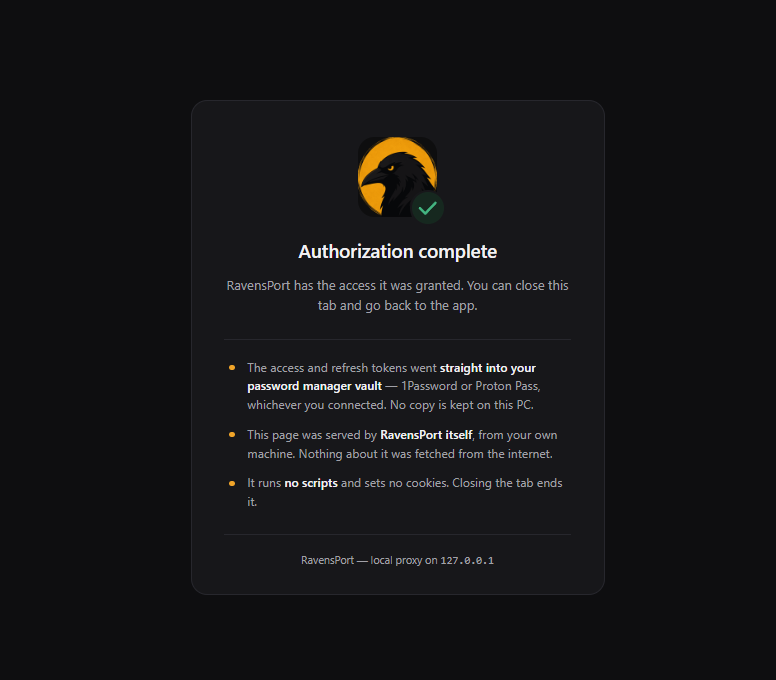
Every Google authorization forces the consent screen (prompt=consent) so a refresh token is
issued every time — otherwise the credential silently cannot auto-refresh later.
GitHub#
- GitHub Settings → Developer settings → OAuth Apps → New OAuth App.
- Set Authorization callback URL to
http://127.0.0.1:51005/callback/— GitHub matches it exactly, so it has to be that, character for character. - Pick the GitHub preset. Paste Client ID/Secret and set scopes using GitHub's own names
(
repo,read:org,gist) — they are not URLs.
An OAuth App token has no expiry and no refresh token; GitHub simply never ages it out, and the credential shows Connected · no expiry. A GitHub App acting on behalf of a user, with expiring tokens enabled, returns both and refreshes like any other provider.
Device code#
The same user login as the browser flow, arranged so nothing has to come back to this machine. The provider issues a short code, you enter it wherever you like, and RavensPort polls until you have. Worth choosing when a provider will not accept a loopback callback URL, when you would rather approve on a phone, or when the redirect keeps landing somewhere unhelpful.
- Enable it at the provider. GitHub: tick Enable Device Flow in the OAuth App's settings — it is off by default and GitHub refuses the request without it. Google: the client must be registered as TVs and Limited Input devices; a Desktop-app client is refused here.
- Credentials tab → type OAuth2 device code → pick a preset, which fills in both endpoints → paste the Client ID → set scopes.
- Client secret is optional. RFC 8628 exists for clients that cannot hold one, and most providers issue device codes to public clients. Leave it blank unless yours insists.
- Connect. The code appears in the status bar, is copied to your clipboard, and the verification page opens in your browser — pre-filled with the code where the provider supports it. Enter it anywhere; approving on a different device works exactly as well.
The device authorization endpoint is not the browser authorization endpoint. That one is a
page for a browser; this one is called by the app and answers JSON, and providers publish them at
different addresses. An OIDC provider lists it as device_authorization_endpoint in its discovery
document.
Once approved it is an ordinary grant with a refresh token, renewed in the background like any other — the device flow is only how it was first approved.
Google service account#
For Google APIs with nobody at the keyboard. The downloaded key file signs for its own access tokens, so there is no consent screen and no refresh token.
- Google Cloud Console → IAM & Admin → Service Accounts → your account → Keys → Add key → Create new key → JSON.
- Credentials tab → type Google service account → paste the whole file, unedited.
- Set scopes as full URLs (
https://www.googleapis.com/auth/drive.readonly). Scopes are required: Google issues a token for a scopeless request without complaint and every API then rejects it, which looks like a permissions problem rather than a configuration one. - Impersonated user — leave blank for Google Cloud APIs, where the token should belong to the service account itself. Set it to a person's address for Workspace APIs (Gmail, Calendar, Drive), which act on that person's data. Grant the same scopes to the service account first under Admin console → Security → API controls → Domain-wide delegation.
The key file is a secret in every sense — it holds a private key — so it lives in your password manager like everything else and is never redisplayed. On edit, a blank box means "keep the current key file".
OAuth2 client credentials#
For APIs where the calling application is the principal — no user, no browser.
- Register a confidential client with your provider and note its token endpoint. There is no authorization endpoint and no redirect URI here; nothing opens a browser.
- Credentials tab → type OAuth2 client credentials → paste Client ID/Secret, the token endpoint, and any scopes.
- Extra token request parameters (optional) — written as
a=1&b=2. This is where the parameter that decides what the token is actually for goes:audience=https://your-api/for Auth0,resource=…for Entra ID. Values are percent-decoded once, so paste them exactly as the provider documents them. - Send client credentials in request body — off by default, which sends them as an HTTP Basic
header (the OAuth2 default). Providers disagree about which they accept, and one that wants the
other answers a bare
invalid_clientthat says nothing about which half was wrong. If that is what you are seeing for an ID and secret you know are right, try the opposite setting.
Nextcloud or custom OAuth2#
- Create an OAuth2 client under Nextcloud Settings → Security → OAuth2, or your provider's equivalent.
- Pick the Nextcloud or Custom preset. Fill in the Authorization and Token endpoints (or an Authority for OIDC discovery), Client ID/Secret, and scopes.
- Register
http://127.0.0.1:51005/callback/as the redirect URI if your provider requires pre-registration. It is fixed and copyable from the UI.
Endpoints must be https, except on localhost — these fields receive your client secret and
refresh token.
Testing a credential#
Set a Test endpoint — any URL that answers 200 to an authenticated GET — and the
credential's row gains a Test button. Clicking it sends one GET there with the credential
attached in its default placement, and reports what came back.
This matters most for API keys. An OAuth grant proves itself during the browser flow — a wrong
client secret cannot complete one — but nothing validates a pasted key, so without this the first
sign of a typo is a 401 on a real request hours later, which reads as an upstream problem
rather than a credential one.
| Result | Means |
|---|---|
200 |
The credential works, in that placement, at that endpoint. |
401 / 403 |
The secret, or where it is placed, is wrong. |
3xx |
Almost certainly a redirect to a sign-in page. |
404 |
Check the test endpoint URL itself, not the credential. |
| unreachable / timeout | Says nothing about the credential. |
- Only
200passes, and redirects are not followed — following one would report a login page as proof the credential works, which is exactly the failure being tested for. - A body default placement cannot be tested: the request is a GET and has no body. Set the default placement to a header to test, then override it on the route.
- The endpoint must be
https(or localhost) — the secret is sent there. Neither the result message nor the activity log ever contains the secret or the query string it might sit in.
Edit this page on the wiki Request support · Report vulnerabilities privately